
Social media
Class overview
In this part of the classroom we’ll explain how to set up your social media:

1. Connecting your Social Media profiles to your website
It is possible to display social media icons that connect to your profiles on these platforms in the top right corner of your website, they are part of the top menu bar:

To Learn how to set up these icons, go to the Secondary top menu bar video here.
Social media Icons at the Bottom of Your Site
Social media icons can also appear in the bottom right corner of your site:
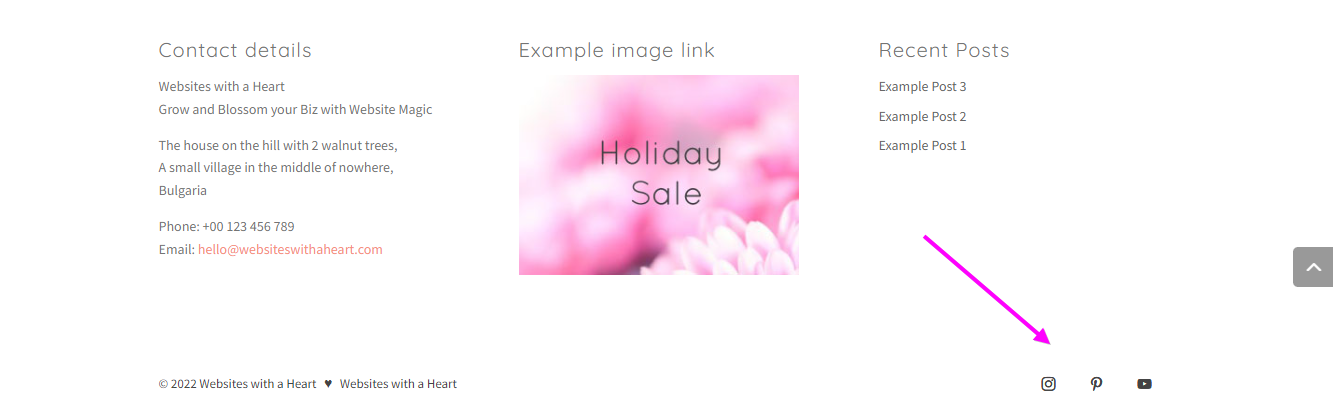
They are part of the bottom bar and we show you how to have them appear and disappear, and how to change their look in this video here Social Media Icons in the Bottom Bar in the Menu’s Class.
Using the Social Follow Module to add more social media icons
There is also a Social Follow module in the Module Library, with this module you can insert Social Media icons wherever you like in your layouts. See the Social Follow module for more info.
2. How to set up your Social Sharing Buttons
Social sharing buttons make it easy for your website visitors to share your content on social media networks.
As part of our website package we have also installed the premium Monarch plugin that makes managing your sharing buttons very easy. Watch the video below to see how to work with Monarch to create beautiful sharing buttons: