
Layout Library
Here you can preview the pre-made layouts of your website pack. To learn how to use these layouts in your website, see our class Working with Layouts.
Layout updates
We update our layouts from time to time, so what you see here may be different from what you have available in your website through the Divi Library, depending on when you bought your Divine Website Pack. Jump to Layout Pack lower on the page to find out more and instructions on how to import the latest layouts into your website.
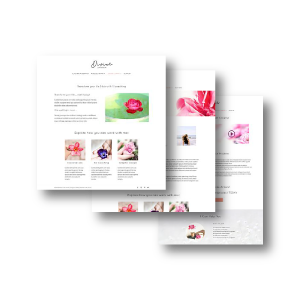
Layouts available

This preview shows only the top of the layout, the actual layout is longer
Homepage 1 | v1

This preview shows only the top of the layout, the actual layout is longer
Homepage 2 | v1

This preview shows only the top of the layout, the actual layout is longer
About Me | v1

This preview shows only the top of the layout, the actual layout is longer
About Us | v1

Contact Page 1 | v1

Contact Page 2 | v1

Contact Page 3 | v1

Work with me 1 | v1

This preview shows only the top of the layout, the actual layout is longer
Work with me 2 | v1

This preview shows only the top of the layout, the actual layout is longer
Sales page 1 | v1

This preview shows only the top of the layout, the actual layout is longer
Sales page 2 | v1

This preview shows only the top of the layout, the actual layout is longer
Sales page 3 | v1

Landing page 1 | v1

Landing page 2 | v1

FAQ 1 | v1

FAQ 2 | v1

This preview shows only the top of the layout, the actual layout is longer
Testimonials | v1

Coming Soon page | v1

This preview shows only the top of the layout, the actual layout is longer
Email / Newsletter optins | v1

This preview shows only the top of the layout, the actual layout is longer
Ideas with images | v1

This preview shows only the top of the layout, the actual layout is longer
Text & Image blocks | v1

This preview shows only the top of the layout, the actual layout is longer
Blog Roll Page Divi Module & Sidebar | v1
See the blogging class, under more options for your blog roll page
for more information about this layout.

Blog Roll Page Grid Mode | v1
See the blogging class, under more options for your blog roll page
for more information about this layout.

Divi Standard Blog Post | v1
See the blogging class, under using the Divi Builder for your blog posts
for more information about this layout.
Divi Blog Post Custom Sidebar | v1
The preview of this layout looks exactly the same as the layout Divi Blog Post Standard, that is because the sidebar has been set to display the standard WordPress sidebar. However, with this layout it is possible to build custom sidebars with divi modules next to your blog posts. See the blogging class, under using the Divi Builder for your blog posts
for more information about this layout.

Divi Blog Post Centred – No Sidebar | v1
See the blogging class, under using the Divi Builder for your blog posts
for more information about this layout.
Layout pack with the latest version of the layouts
We update the layouts from time to time, and the latest version of all the layouts can be downloaded here in one file by clicking on the download button on the right.
This layout pack should be imported into your Divi Library. Instructions on how to do this can be found a little bit further below.
This downloads a .json file with the latest versions of all the layouts in one file.
Version number of these layouts | v1
We give our layouts a version number, and we add this to the layout name, so for example:
Homepage 1 – Divine Website Pack | v1
Sales Page 2 – Divine Website Pack | v1
The first edition of the layouts have no version number, for example: Homepage 1 – Divine Website Pack
If you import a layout pack or a single new layout into your site, the new layout(s) will have names with the latest version number in the file name, so that you can discern between the new layouts and the older versions that were already in your site.
Downloading and importing layout(s) into your Divi Library
Divi Layout files have the file extension .json, so this is the file type that will download to your computer when you download any of the layouts on this page.
Importing layouts is explained in the classroom here.
Deleting the older layouts
To clean up any older layouts from your site, after you have imported new layouts, go to your Divi Library:

In the top menu, choose Layouts from the Drop down as shown below, the click on filter, to only show all layouts in the library. You will now see a list of all layouts that are present in your library. Next to the layouts that came with your website pack, there may also be layouts that you have created and saved yourself here.

So now you need to look through the list, and click on the tick box in front of all the layouts that you’d like to delete. In the screenshot above we have highlighted one layout in yellow that has Divine Website Pack in the file name, so go through the list and look at all the layouts with Divine Website Pack in the file name, check the version number (Layouts with no version number are our oldest layouts, followed by version 1, version 2, etc) and tick the box in front of those you no longer need, then select Bulk Actions > Move to Trash and click Apply to delete.

If you accidently trashed layouts you still need, you can go to trash:

There you can restore them one by one, or you can tick the boxes of items you’d like to restore and use bulk actions to restore several items in one go:
