
Pasting text from other places, such as a word processing program
If you’re pasting text from another place into your website (for example from Microsoft Word), you’ll notice that often all the formatting of the text (text size and font) also gets copied over. Usually, that’s not what you want, because you want the text to show in the same style as the rest of your website.
To avoid this from happening, you can paste as plain text. When you paste as plain text, your text will get the same formatting as the rest of your website.
How to paste as plain text
There’s a button in your text module that allows you to always paste text as plain text. You’ll see this button is when you open your text module through the Visual Builder.
So, make sure you are in Visual Builder mode. Then open your text module settings through the cogwheel icon.
And now scroll down to the editor at the bottom of the module.
Find the “paste as plain text mode” button and click it. Here’s what it looks like:
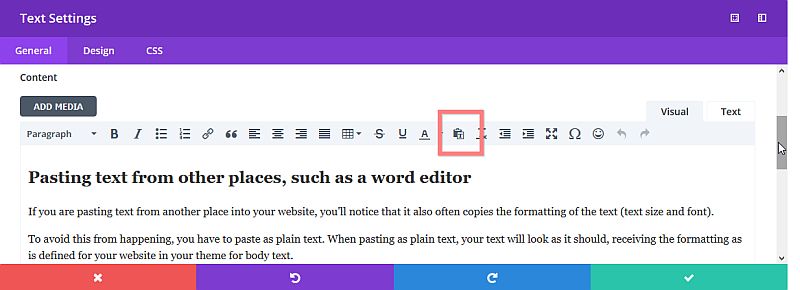
A message appears that paste is now in plain text mode, and the button is highlighted in blue. Until you click the button again, pasting will now continue to be in plain text mode for this text module. Like so:

A different way of pasting as plain text
If you don’t want to go searching for buttons, you can also paste the text into a plain text-editor first, and then copy it over again from there.
So for example, on Windows you could use the Notepad program to do this. You’d copy your text from Word, paste it into Notepad (that causes it to lose all its formatting), and then copy it from Notepad into your website.
An example of a text editor on Mac is TextEdit, which is included with the MacOS software.