
The Basics of WordPress
Class overview
In this class we’ll explain the basics of working in WordPress:
1. The WordPress Dashboard
The WordPress Dashboard is the place you’ll land in when you login to your website. It is also known as the WordPress Admin or your website’s Backend (as opposed to the Front End which is what your website visitors see).
In the video below we’ll show you around :)
Pro Tip: Working in two browsers
To help you with your workflow when working on your website, here’s a quick video showing you how to work with two browsers:
2. Working with the Media Library
The Media Library is where all your images and documents live (think of PDF’s or even word documents and excels sheets, whatever you’d like to make available as downloads).
In this video we’ll show you how to upload your media and manage it in the library:
Working with PDFs or other files on your website
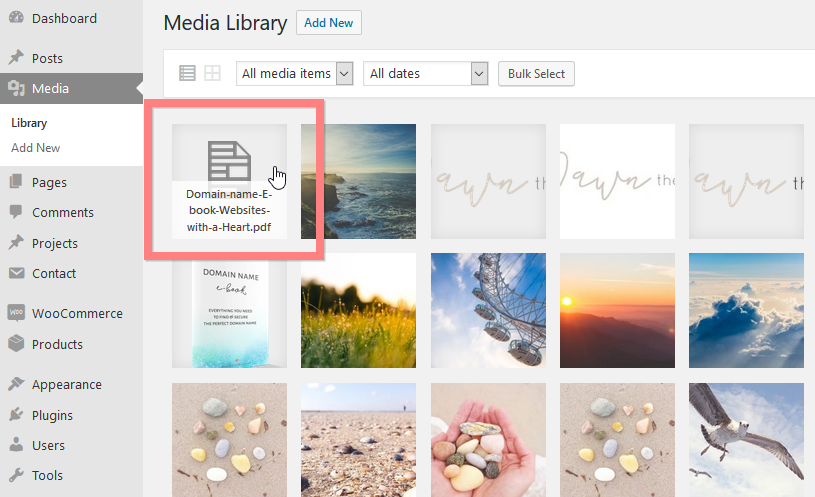
We showed you in this video how to add other files like PDFs to your media library. You can make these files available for download by creating a text link , or by connecting them to a button. To do this you need to use the link to the PDF file in the media library.
Go to the file in the library and click it:
The file link is in the top right URL field:
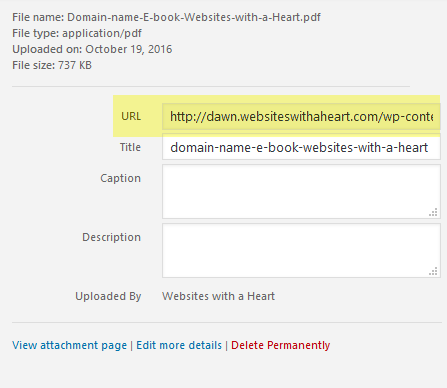
Copy the complete link by clicking on the field and choosing Ctrl + A for select all followed by Ctrl + C to copy the link.
Now you can use this link just like you would a normal link, so you can use it to create a text link or you can use the link for the URL link of a button to create a download link.
Using video on your website
We mentioned in the video that it is in most cases not a good idea to upload video files to your website’s media library. It is better to use an external video hosting service, such as Youtube or Vimeo, and embed the videos in your website. See the Video class for more info.
3. Creating pages & posts
You’ll be creating most of your content with the Divi Builder, but before you can get started with that, you’ll first need to create a page. In the first video below we’ll show you how to create pages & posts in WordPress. In the second video we’ll show you how to manage and edit the posts and pages you have.
We will cover just the very basics, because creating your page content is shown in detail in the classes “Working with the Divi Builder” and “Creating Content with your Dawn Child Theme“, further on in this course.
And we’ll dig deeper into blogging and creating posts in the class ” Blogging“.
Just to summarize : you can view all the pages that you have in pages > all Pages:

From here you can click edit to open them and edit them.

Quick edit doesn’t open the full page but allows you to make some quick settings such as changing the title, etc.

In “Posts > all Posts” you can open, view and quick edit your posts. You can change the publish date, change or add tags and the post category or you can change the status of the post to draft or published.